YouTube Ads can help businesses reach potential customers while they watch videos, browse content, discover Shorts, or explore topics related to their interests. Because YouTube advertising runs through Google Ads, however, launching a campaign involves decisions across both platforms.
The process starts before you create the campaign. You need a video that works as an ad, a clear advertising goal, an appropriate destination for users who interact with it, and a way to measure the actions that matter to your business. From there, Google Ads allows you to define how much you want to spend, who you want to reach, where your ads can appear, and how the campaign should bid for your desired outcome.
This guide walks through how to set up YouTube Ads step by step, from preparing your video and connecting your accounts to creating, reviewing, and publishing the campaign. Because the options available in Google Ads can vary depending on your campaign objective and format, we will also explain what the major settings mean rather than simply telling you which buttons to select.
Before You Set Up a YouTube Ads Campaign
Before opening Google Ads, decide what you want viewers to do after seeing your video. A campaign designed to introduce your brand to a larger audience will require different decisions from one intended to generate website visits, leads, sales, or video views. Defining that outcome first will make it easier to evaluate the campaign options Google presents during setup.
You should also know who you want to reach and where you want to send people who interact with the ad. If the campaign directs viewers to your website, review the destination page before launch and make sure the message continues naturally from the video. Someone interested enough to interact with your ad should not arrive on a page where the offer or next step is difficult to find.
Finally, prepare the assets and measurement tools you will need. Your video should already be available on YouTube, and if the campaign is intended to drive measurable actions such as purchases or leads, conversion tracking should be configured correctly. Taking care of these elements before campaign creation makes the setup process much easier to follow.
Review our service to landing page optimization if your YouTube campaign will send viewers to a dedicated page on your website.
Step 1: Prepare Your YouTube Video
Your video is the central creative asset of a YouTube Ads campaign, so prepare it before you begin working through the campaign settings in Google Ads. The video you want to advertise needs to be uploaded to YouTube and available for Google Ads to use.
A video used for advertising does not necessarily need to appear publicly on your channel. Depending on your campaign and creative strategy, a public or unlisted YouTube video can be used, allowing you to create advertising-specific content without making every variation part of your channel’s public video library.
Before uploading, think about how quickly the creative communicates its purpose. YouTube viewers can encounter ads while actively trying to watch something else, while browsing recommendations, or while moving through short-form content. The opening should therefore establish the subject, brand, product, or value proposition without depending on a long introduction.
Also consider where the creative may appear. A video designed for an in-stream experience may not work exactly the same way in a vertical, mobile-first environment such as Shorts. Depending on the campaign, preparing different aspect ratios or creative variations can give you more flexibility across eligible YouTube inventory.
Do a final review of the video before using it in the campaign. Check the audio, captions, branding, messaging, and any offers or claims included in the creative. If the video contains a spoken or visual call to action, make sure it matches what users will be able to do after interacting with the ad.
Step 2: Connect Your YouTube Channel and Google Ads Account
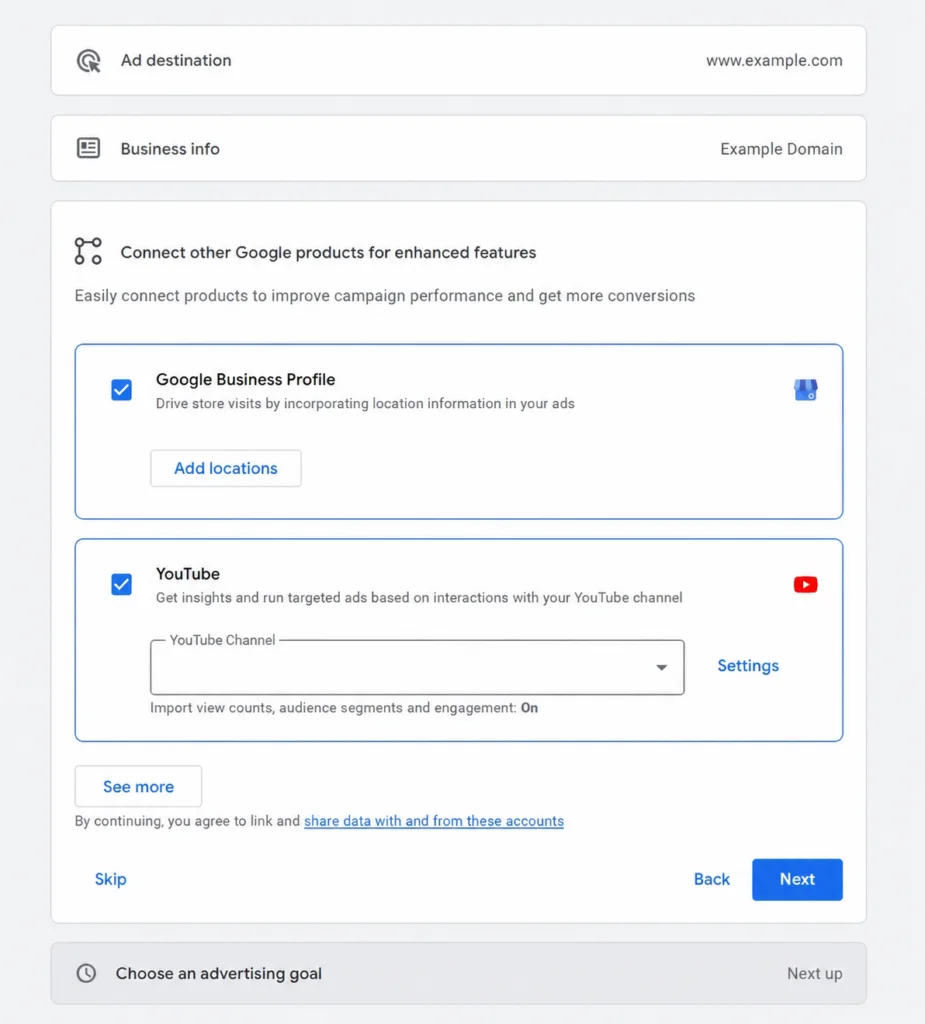
Google Ads and YouTube work together to run video advertising, and linking the accounts can provide additional functionality and data for advertisers. If your accounts have not already been connected, you can create the link through the account management options available in Google Ads or YouTube.
Make sure you are connecting the correct channel and advertising account, particularly if your organization manages multiple brands, clients, channels, or Google Ads accounts. Account permissions also matter, so the person completing the setup needs the appropriate level of access to approve the connection.
Linking a YouTube channel can allow the Google Ads account to use certain channel-related data and features, depending on the permissions selected during the linking process. Review those permissions rather than approving them automatically so you understand what information and capabilities are being shared between the accounts.
If you are working with an agency or several members of a marketing team, avoid sharing individual login credentials as a shortcut. Use the account access and permission options provided by Google so each person can work with the appropriate level of access.
Step 3: Set Up Your Conversion Tracking
If your YouTube Ads campaign is intended to generate leads, purchases, sign-ups, or other actions beyond video engagement, conversion tracking should be ready before you launch. Without reliable measurement, it becomes difficult to determine whether viewers are completing the actions the campaign is supposed to generate.
Start by defining which actions represent meaningful outcomes for the campaign. A completed purchase or submitted lead form may be a primary conversion, while other behaviours can still be useful for analysis without becoming the main signal used for campaign optimization.
Google Ads supports different ways to measure conversions depending on the action and your existing analytics setup. Website conversions, calls, app activity, imported data, and other sources can be configured as conversion actions. The appropriate method will depend on what happens after someone interacts with your YouTube ad.
Once tracking is configured, test the conversion path before launching the campaign. Visit the destination page, complete the intended action when possible, and verify that your measurement setup is working correctly. It is better to identify a tracking problem before spending begins than to discover later that the campaign generated activity you cannot accurately evaluate.
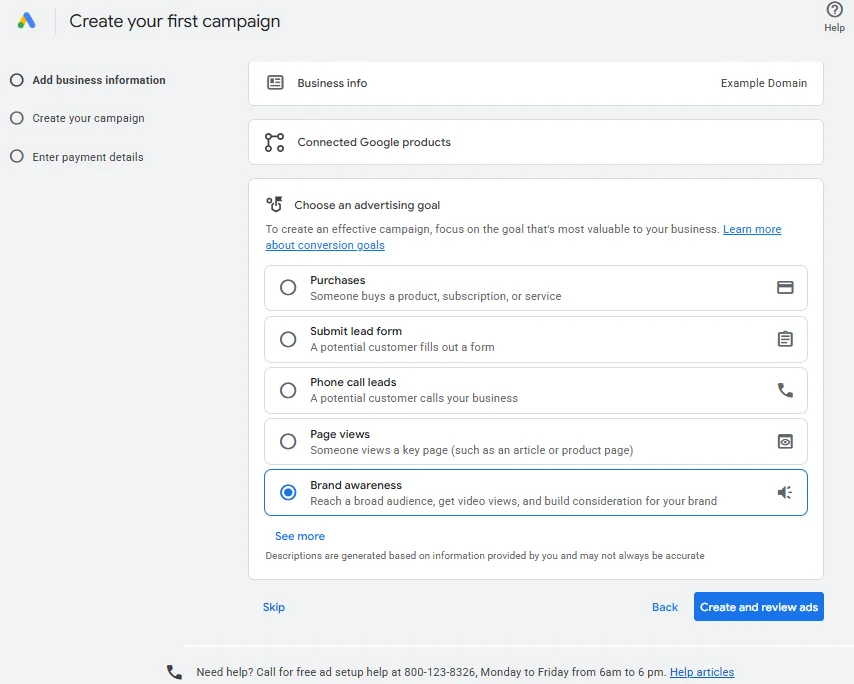
Step 4: Create a New Campaign in Google Ads
Once your video and measurement setup are ready, sign in to Google Ads and go to the Campaigns section. From there, start a new campaign. Google will guide you through a series of decisions based on what you want the campaign to accomplish.
If you manage multiple Google Ads accounts, confirm that you are working in the correct one before creating anything. This is especially important for agencies and businesses with several brands or locations, since campaign settings, billing information, conversion actions, and linked YouTube channels can differ between accounts.
As you move through the setup, you may notice that the screens or options in your account do not look exactly like those shown in another tutorial. Google regularly updates the Google Ads interface, and the available settings can also depend on the objective, campaign type, account history, and other factors.
For that reason, focus on the purpose of each setting rather than trying to reproduce a particular screen exactly. The important part is understanding what you are telling Google Ads to accomplish and how each choice affects the campaign you are building.
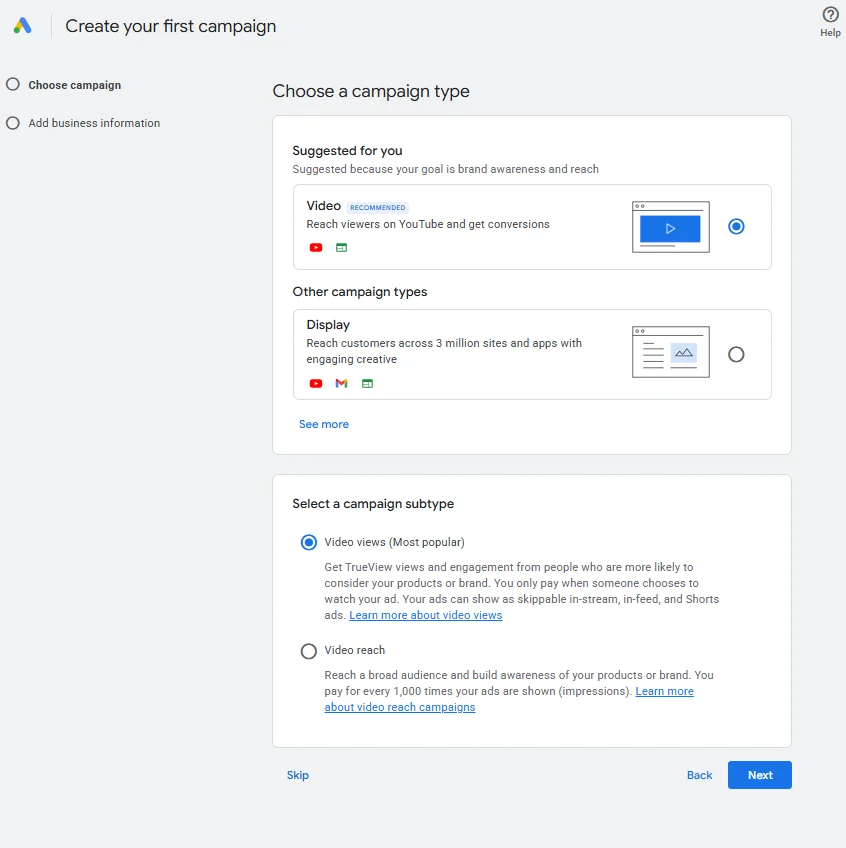
Step 5: Choose Your Campaign Goal and Video Campaign Type
Google Ads uses campaign objectives to help determine which campaign types, bidding options, and settings are relevant to your goal. Depending on the options available in your account, you may see objectives related to sales, leads, website traffic, awareness and consideration, or other outcomes.
Choose the objective that most closely represents what you want the YouTube campaign to achieve. If the purpose is to generate leads, for example, selecting an objective aligned with conversions makes more sense than choosing one primarily because it provides access to a particular ad format.
After selecting your objective, Google will present the campaign types available for that goal. For a YouTube-focused campaign, this may involve selecting Video and then choosing from the available campaign subtypes or goals. These options determine important parts of the setup, including eligible ad formats, bidding strategies, and where ads can appear.
Depending on the objective and current Google Ads options, you may encounter choices designed around outcomes such as video views, reach, or conversions. Some advertisers may also see the option to create a campaign without goal guidance, which provides a different path through the setup.
Do not treat the campaign subtype as a minor technical setting. A campaign designed to maximize video views is built around a different outcome from one intended to drive conversions or maximize reach. Start with the business result you need, then select the option that supports it.
Step 6: Select the Right YouTube Ad Format
YouTube Ads can appear in different formats and viewing experiences. The formats available to you depend on the campaign setup, objective, and subtype you selected, so you may not see every option within every campaign.
Skippable In-Stream Ads
Skippable in-stream ads can play before, during, or after other videos. Viewers have the option to skip the ad after the initial few seconds, which makes the beginning of the creative particularly important.
This format can support different objectives depending on the campaign configuration. Since viewers can choose whether to continue watching, the video should communicate its main message early while still giving interested viewers a reason to stay.
Non-Skippable In-Stream Ads
Non-skippable in-stream ads require viewers to watch the complete ad before continuing to their selected content. They are designed for concise messages and are available within eligible campaign configurations.
Because viewers cannot skip the creative, clarity and pacing become especially important. Use the available time to communicate one focused message rather than trying to fit several ideas into a short video.
Bumper Ads
Bumper ads are short, non-skippable video ads designed to deliver a brief message. Their limited duration makes them better suited to simple ideas, memorable branding, or messages that can be understood almost immediately.
Rather than compressing a longer advertisement into a few seconds, create the video specifically for the format. A single product, benefit, message, or brand cue will generally be easier to communicate within such a short window.
In-Feed Video Ads
In-feed video ads appear in places where people are discovering YouTube content, such as search results, related video areas, or the YouTube mobile homepage. Instead of automatically interrupting another video, they invite the user to choose to watch the advertised content.
The thumbnail and headline therefore play a particularly important role. They need to give viewers a clear reason to select the video while accurately representing the content they will see.
YouTube Shorts Ads
Video ads can also appear between organic Shorts in the YouTube Shorts experience. Because Shorts is designed around vertical, mobile-first viewing, creative built specifically for that environment can provide a more natural experience than simply repurposing a traditional horizontal video.
Keep the viewing context in mind when preparing the creative. Vertical framing, fast communication, readable on-screen text, and a strong opening can make the video easier to understand as users move through the Shorts feed.
The goal is not to choose as many formats as possible. Select a campaign setup and creative approach that fit the outcome you want and the way your audience is likely to encounter the message.
Explore our YouTube advertising services to learn more about how MRKT360 approaches advertising on YouTube.
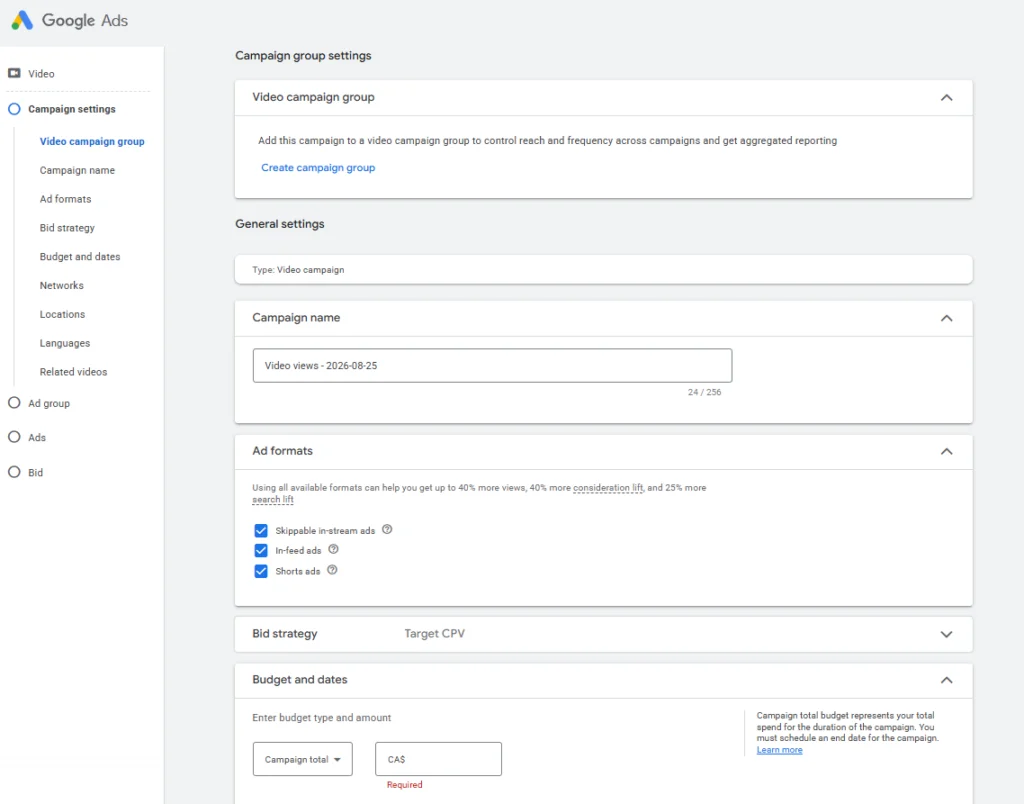
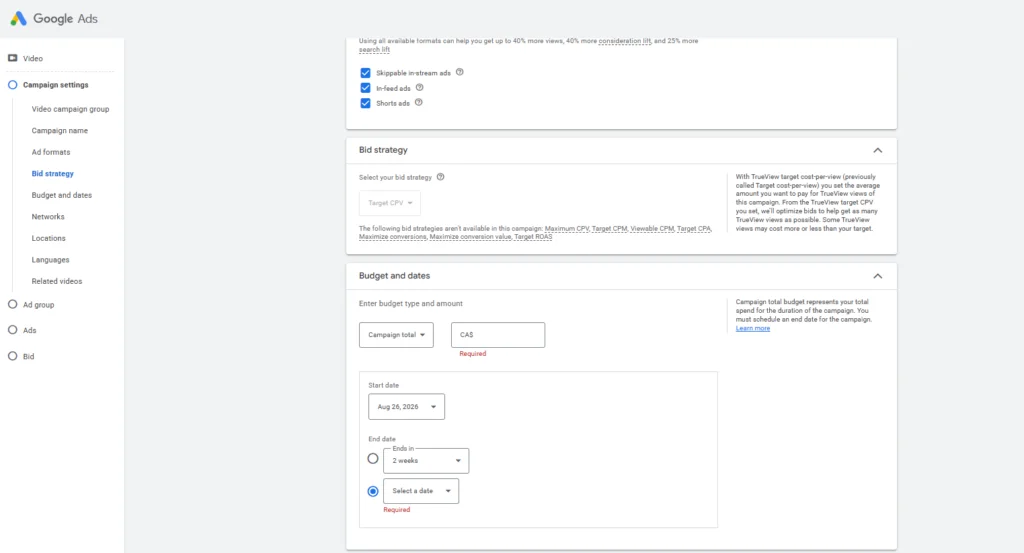
Step 7: Set Your Budget and Bidding Strategy
Once the campaign type and objective are established, decide how much you are prepared to spend. Google Ads may allow you to use a daily campaign budget or a total campaign budget depending on the campaign configuration.
There is no universal amount that every YouTube Ads campaign should start with. Your budget should reflect your objective, audience size, geographic targeting, bidding strategy, campaign duration, and the amount your business can realistically invest. A fixed recommendation such as $10 or $20 per day does not account for these differences.
Your bidding strategy should also correspond to the result you selected earlier. Depending on the campaign, Google Ads may provide strategies designed around views, impressions, conversions, or conversion value. Some configurations may also allow you to set targets or bid amounts associated with those outcomes.
For example, a campaign focused on generating views should not necessarily use the same bidding approach as one built to generate website conversions. Choosing the bidding strategy around the actual campaign goal helps keep delivery and measurement aligned.
Avoid making the initial budget or bid more complicated than necessary. Start with settings that match the campaign objective and that you can sustain long enough to collect useful data. Once the campaign is running, performance can provide more context for future budget and bidding decisions.
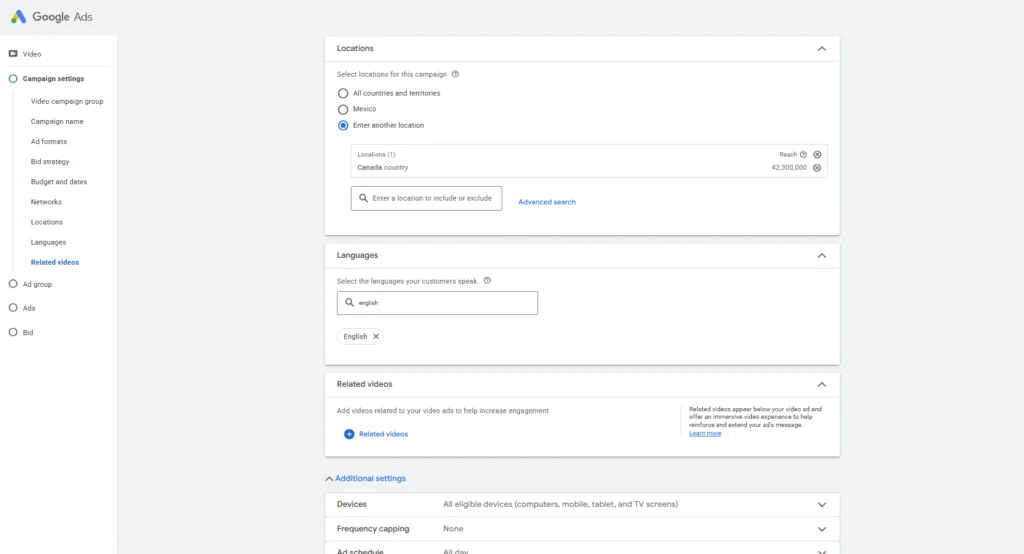
Step 8: Choose Locations, Languages, and Other Campaign Settings
Next, define the geographic areas where you want your YouTube campaign to reach potential customers. Depending on your business, you can target broad markets such as countries or more specific areas such as regions and cities.
Choose locations based on where your business can realistically serve customers. A local company may need a focused geographic area, while an ecommerce business that ships across the country can target more broadly. Expanding your location targeting simply to increase potential reach can also expose the campaign to viewers who are unlikely to become customers.
Review the advanced location options available in the campaign as well. Google Ads can use different signals related to a person’s presence in or interest in a location, so make sure the selected option reflects the audience you actually want to reach.
You will also choose the languages associated with the campaign. Google can use several signals to determine which languages users understand, so this setting does not work simply by matching a person’s interface language. Your selection should reflect the audience you want to reach and the languages used in your video, ad copy, and destination page.
Depending on the campaign configuration, you may see additional settings related to devices, scheduling, content exclusions, frequency, or other delivery controls. Not every campaign requires changes to every setting. Review what is available and adjust the options that are relevant to your advertising goals instead of changing defaults without a clear reason.
Step 9: Define Your Audience Targeting
Audience targeting helps determine which people are eligible to see your YouTube Ads. Rather than relying on a single targeting method, Google Ads provides different ways to build audiences based on characteristics, interests, behaviours, and other signals.
You can begin with demographic information such as age, gender, parental status, or household income where those options are available. Demographics can help narrow the audience, but avoid adding restrictions simply because the settings are there. Every additional condition can reduce reach, and assumptions about your audience may exclude potential customers you had not considered.
Google Ads also offers audience segments based on interests and purchase behaviour. Affinity segments can help reach people based on longer-term interests and habits, while in-market segments are designed around users who are actively researching or considering particular products and services.
Custom segments provide another way to define relevant audiences. Depending on the campaign, they can use signals such as search terms, websites, or apps related to the people you want to reach. This can be useful when predefined audience categories do not closely represent your market.
Your own data can also play a role when eligible. For example, businesses may be able to reach previous website visitors, customers, or other users who have already interacted with the brand, subject to Google’s requirements and advertising policies.
Start with targeting that reflects a clear audience hypothesis rather than combining every available segment into one group. A simpler structure can make it easier to understand which audiences are contributing to campaign results and where future adjustments may be needed.
Step 10: Choose Where Your YouTube Ads Can Appear
Audience targeting answers the question of who you want to reach. Content targeting focuses more closely on where your ads may appear. Keeping those concepts separate makes it easier to understand the controls available when setting up a YouTube campaign.
Depending on your campaign type and settings, Google Ads may provide content targeting options such as topics, placements, or keywords. These controls can help associate your ads with particular types of videos, channels, websites, or content themes.
Topics
Topic targeting can place your ads alongside content related to broad subjects. This can be useful when the context of the content is relevant to your product, service, or message but you do not need to select individual videos or channels.
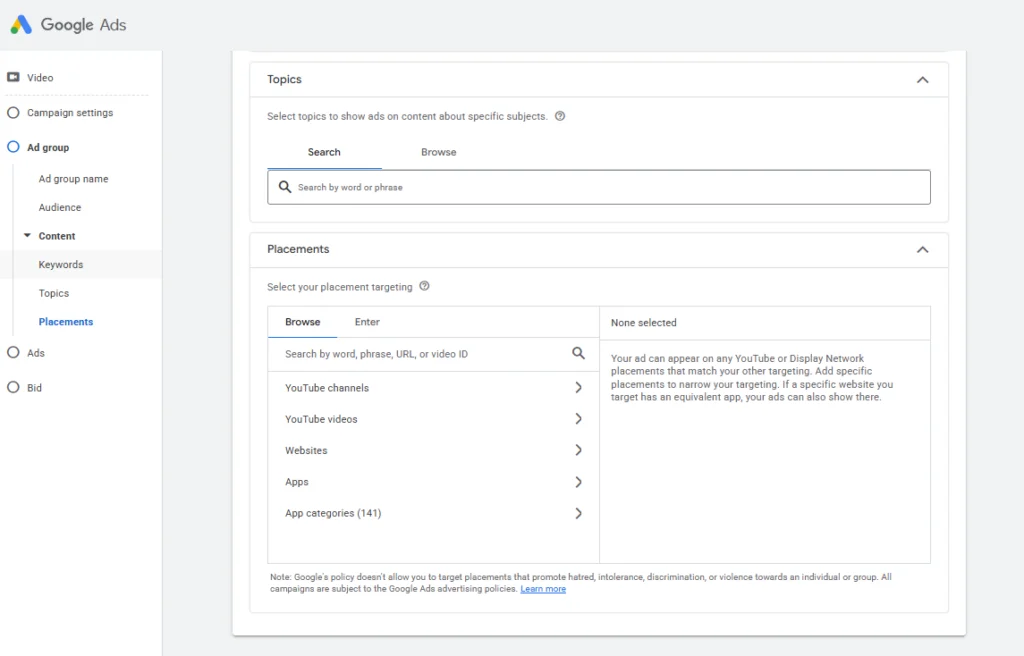
Placements
Placement targeting can provide more specific control by allowing you to select eligible YouTube channels, videos, websites, or apps where you want ads to appear. Availability and delivery can vary, so selecting a placement does not necessarily guarantee that your ad will appear there.
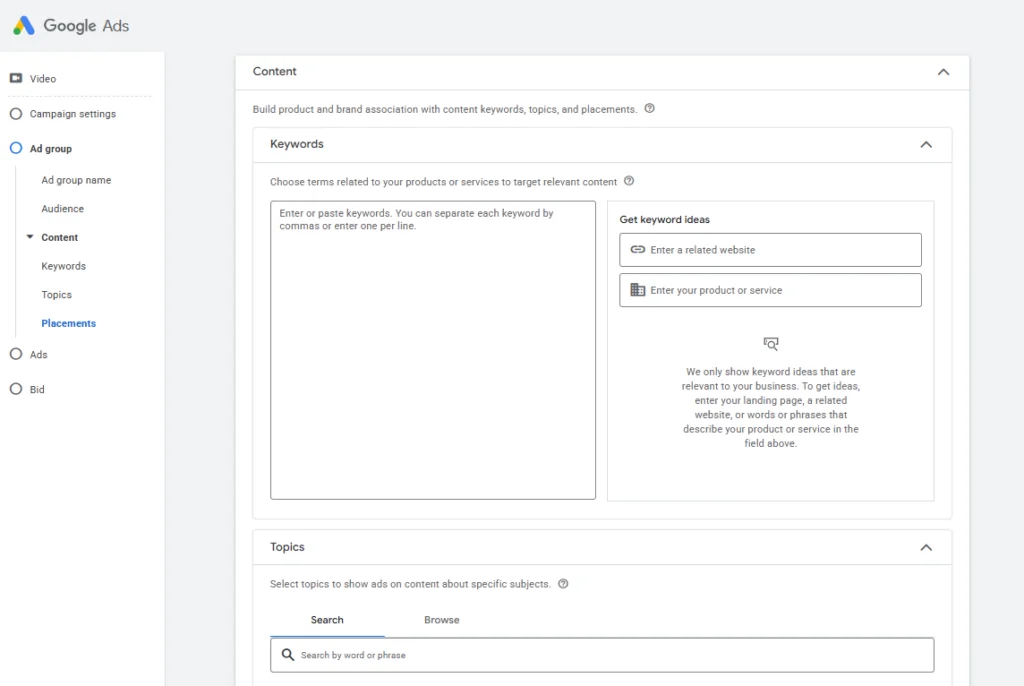
Content Keywords
Content keywords can help Google Ads identify content related to particular words or themes. These are different from the search keywords used in a traditional Search campaign because they are intended to provide contextual signals about relevant content rather than simply match a Google search query.
Not every YouTube campaign needs narrow content targeting. In some cases, combining too many audience and content restrictions can make the eligible audience unnecessarily small. Choose targeting methods based on the campaign strategy and the amount of control you actually need.
Also review whether your campaign can serve beyond YouTube. Depending on the campaign configuration, video ads may be eligible for Google video partner inventory. If your intention is specifically to advertise within YouTube, check the network and inventory settings available to you rather than assuming every impression will occur on the platform.
Step 11: Create Your Video Ad
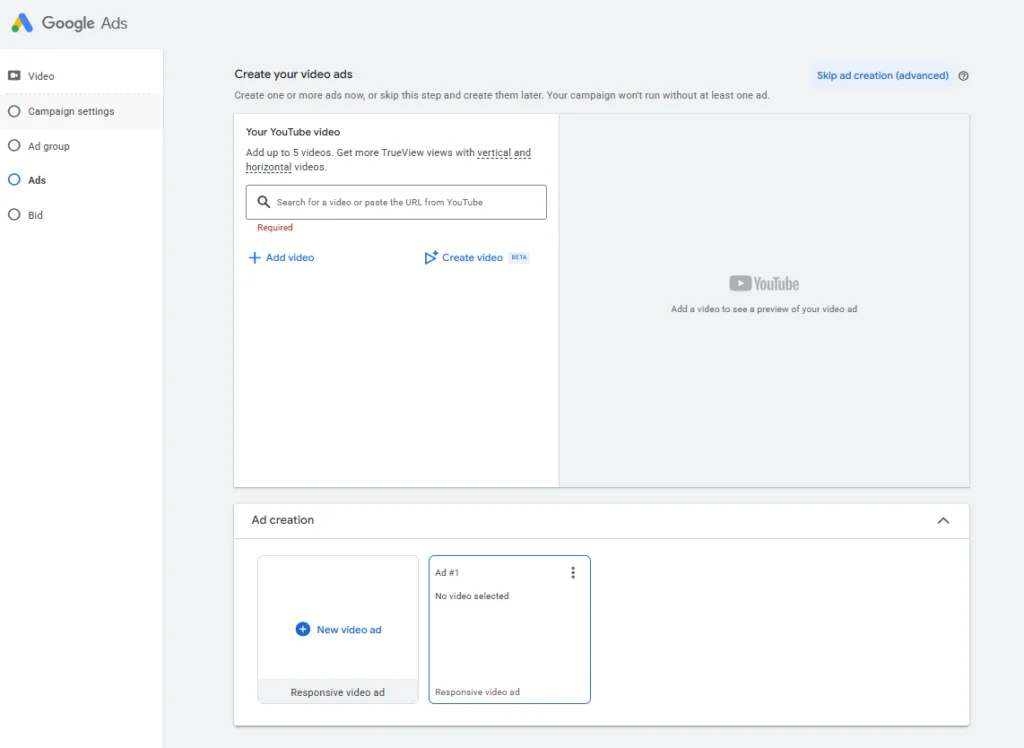
Once the campaign and targeting settings are ready, you can add the video you prepared earlier. Google Ads typically allows you to locate the video through its YouTube URL or select eligible video content associated with your account.
After selecting the video, Google Ads will show the ad creation options available for the campaign. These can vary depending on the format and objective you selected, so the fields you see may differ between an in-stream campaign, an in-feed experience, or another video configuration.
Preview the ad before moving forward. Check how the creative appears in the available placements and pay attention to elements that may be cropped, difficult to read, or less effective on smaller screens. A video that looks good on its YouTube watch page may not communicate the same way when presented as an advertisement.
This is also an opportunity to confirm that you selected the correct video version. If your team has created multiple edits, aspect ratios, languages, or campaign-specific variations, verify the YouTube URL and creative before publishing.
The video and campaign settings should work together. The audience, format, message, and desired action all contribute to the viewing experience, so avoid treating the creative as an asset that can simply be added at the end without considering the rest of the campaign.
Step 12: Add Your Destination, Headlines, and Call to Action
Depending on the campaign format and objective, Google Ads may ask you to provide additional elements alongside your video, such as a final URL, display URL, call to action, headline, long headline, or description. These elements help viewers understand what the ad offers and what they can do next.
If your campaign sends people to a website, use a destination that directly supports the message in the video. Someone who sees an ad for a particular product, service, or offer should not have to search through your website to find what was promised. The transition from video to landing page should feel consistent and make the next action easy to understand.
Keep headlines and descriptions focused on information that complements the video rather than repeating it word for word. Depending on where the ad appears, viewers may see different combinations of your creative and text assets, so each element should remain clear within the available context.
Your call to action should also match the intended outcome. Language such as “Learn More,” “Shop Now,” “Sign Up,” or “Get a Quote” creates different expectations. Choose an action that accurately represents what happens after someone interacts with the ad and what the destination page allows them to do.
Before continuing, verify the final URL and preview the available versions of the ad. Check that the copy is accurate, the destination works properly, and the creative still communicates clearly across the placements available for your campaign.
Step 13: Review Your YouTube Ads Campaign Before Publishing
Before publishing the campaign, review the complete setup rather than checking each section in isolation. Your objective, bidding strategy, budget, audience, creative, and measurement should all support the same intended outcome.
Start with the basic campaign settings. Confirm that you selected the correct geographic areas and languages and that your budget reflects what you are prepared to spend. Review the bidding strategy and make sure it corresponds to the result you want Google Ads to pursue.
Next, check your targeting. Look at the demographics, audience segments, placements, topics, keywords, or other targeting methods you selected. If you combined several restrictions, consider whether the resulting audience still gives the campaign enough room to reach relevant viewers.
Review the creative one more time as well. Confirm that you are using the correct YouTube video, destination URL, headline, description, and call to action. If multiple creative variations are included, make sure each one is appropriate for the audience and viewing experience where it may appear.
Finally, confirm that your conversion actions and measurement setup are working if the campaign is designed to generate activity beyond views or awareness. Once the campaign reflects the setup you intended, you can publish it.
Publishing does not necessarily mean the ad will begin serving immediately. Google reviews ads for compliance with its advertising policies, and delivery can also depend on factors such as targeting, bids, budget, inventory, and campaign status.
What Happens After You Launch a YouTube Ads Campaign?
Once the campaign begins running, Google Ads starts collecting information about how your ads are being delivered and how viewers respond. The metrics that matter most will depend on the objective you selected during setup.
For a campaign focused on awareness or reach, impressions and reach can help you understand how broadly the campaign is delivering. If the objective is video engagement, metrics related to views and viewing behaviour become more relevant. Campaigns intended to generate leads or sales should ultimately be evaluated against the conversion actions and business outcomes they were built to support.
Avoid judging the entire campaign from a small number of impressions or a short period of activity. Delivery patterns can take time to develop, particularly when automated bidding is involved. At the same time, basic problems such as disapproved ads, broken destination URLs, incorrect targeting, tracking failures, or unexpected spending should be investigated as soon as they appear.
As more data becomes available, compare performance across audiences, creative variations, devices, locations, and other relevant dimensions. Video advertising also gives you an opportunity to understand how people respond to the creative itself, which can help inform future versions rather than treating targeting and bidding as the only variables worth reviewing.
The initial setup provides the campaign with direction, but performance data gives you additional context once real viewers begin interacting with your ads.
Common YouTube Ads Setup Mistakes to Avoid
One of the easiest mistakes to make is choosing campaign settings before defining what the video is supposed to accomplish. A campaign built for reach, one designed to generate views, and one intended to drive conversions should not automatically use the same bidding, targeting, or creative approach.
Another common problem is using a video without considering the environment where people will encounter it. A long introduction or slow opening may work for someone who intentionally selected a video, but advertising often has to earn attention quickly. Shorts and other mobile viewing experiences can also require a different creative approach from traditional horizontal video.
Overcomplicating targeting can create problems as well. Combining narrow demographics, audiences, topics, placements, and other restrictions may seem precise, but it can leave Google Ads with a very limited pool of eligible viewers. Use targeting to create meaningful boundaries rather than adding filters simply because they are available.
It is also important not to overlook the destination after focusing heavily on the video. If viewers interact with an ad and arrive on a page that does not match the message, loads poorly, or makes the next action difficult to find, the campaign can lose potential results after successfully generating interest.
Finally, do not launch without checking measurement. Views and impressions can tell you how people interacted with the advertising experience, but they cannot answer every business question. If leads, purchases, sign-ups, or other actions matter to the campaign, make sure those outcomes can be measured before you begin evaluating performance.
How MRKT360 Can Help With YouTube Advertising
Creating a YouTube Ads campaign involves decisions across creative, targeting, media strategy, bidding, measurement, and the experience viewers have after interacting with an ad. Bringing those elements together can help businesses build campaigns around a clear objective rather than treating video as an isolated advertising format.
MRKT360 works with businesses on YouTube advertising as part of their broader paid media strategy. This can include planning campaigns, identifying relevant audiences, managing video advertising, measuring results, and connecting YouTube with other digital marketing initiatives.
The right approach depends on what the business needs the campaign to accomplish. A company building awareness may require a different combination of creative and media decisions from one using YouTube to support lead generation or sales.
Explore MRKT360’s YouTube advertising services to learn more about our approach to video advertising.
Key Takeaway
Setting up YouTube Ads starts with more than uploading a video and choosing an audience. A strong campaign connects the business objective with the appropriate campaign configuration, creative, targeting, budget, bidding strategy, destination, and measurement.
Prepare the video and conversion tracking first, then work through Google Ads with a clear understanding of what each setting controls. Choose audiences and placements intentionally, make sure the creative fits the environment where viewers will encounter it, and review the entire campaign before publishing.
Most importantly, treat the setup as the foundation rather than the finished strategy. Once the campaign begins reaching real viewers, the data can help you understand how the audience, creative, and campaign settings are working together.
FAQs About Setting Up YouTube Ads
How do I set up ads on YouTube?
YouTube Ads are created and managed through Google Ads. Prepare and upload your video to YouTube, create a campaign in Google Ads, choose the appropriate objective and campaign settings, define your budget and targeting, add the video creative and destination, and review the campaign before publishing.
Do I need a Google Ads account to run YouTube Ads?
Yes. YouTube advertising campaigns are managed through Google Ads. Your video content is hosted on YouTube, while Google Ads provides the campaign controls for areas such as targeting, bidding, budgets, ad creation, and measurement.
Do I need a YouTube channel to run YouTube Ads?
Your video needs to be hosted on YouTube before it can be used in a YouTube advertising campaign. The video can be public or unlisted, so advertising-specific creative does not necessarily need to appear publicly among the videos on your channel.
How much should I budget for YouTube Ads?
There is no single starting budget that works for every YouTube campaign. The appropriate amount depends on your objective, audience, geographic market, bidding strategy, campaign duration, and expected results. Set a budget that fits your advertising goals and that you can maintain long enough to collect useful campaign data.
Which YouTube ad format should I use?
The right format depends on your campaign objective and how you want viewers to encounter your message. Options can include skippable and non-skippable in-stream ads, bumper ads, in-feed video ads, and ads within the Shorts experience. Available formats can vary depending on the campaign configuration, so choose your objective first and then evaluate the formats available for that setup.
Can I run YouTube Ads without a website?
A website is not required for every YouTube advertising objective. Some campaigns can focus on outcomes such as reach, awareness, or video views without making website activity the primary goal. If you want the campaign to generate leads, purchases, or other actions on your site, however, you will need an appropriate destination and a way to measure those conversions.